Record with a teleprompter

Read your script as you record. The words scroll at the top of the screen, right by the camera, so you keep looking at your audience.

Free, no watermark, no account. Nothing is uploaded.

How to record with a teleprompter

Four steps, in your browser, on a computer or a phone.

  1. Add your script

    Drop a text file on the page, or paste or type your script in. Leave a blank line between paragraphs and the prompter keeps them apart.

  2. Set the size and speed

    Allow the camera and microphone. Make the words as big as you need, and set a speed in words per minute. Press Rehearse to read through without recording.

  3. Record

    Press the red button. After a three-second countdown the words start scrolling, just under your camera. Tap the words to pause them; press the button again to stop.

  4. Save your video

    Watch the take back. The silence at the start and end is trimmed for you. Save it as an MP4, record another, or add captions to it in one click.

Why record with a teleprompter?

You look at your audience, not at your notes. Glancing down at a script, or off to the side at a second screen, is the first thing viewers notice. With the words scrolling right under the lens, your eyes stay where the camera is, and it reads as eye contact.

Fewer takes. Knowing exactly what comes next means fewer stumbles, fewer "ums" and fewer restarts, and no learning lines by heart before you can start.

You say what you meant to say. A script keeps a product demo, a course lesson or a pitch to its point, and to its length. It's how presenters stay on time, and it works just as well for a 30-second Reel.

No app, no rig. A teleprompter used to mean a glass screen in front of the lens, and online ones usually mean an account, a subscription or a watermark. This one is a web page: open it on the laptop or phone you already have, and record.

  • Your video never leaves your device

    The camera, the recording, the trimming and the saving all happen in your browser. Nothing is uploaded, there's no account to make and no watermark on what you save.

  • Speed in words per minute

    Most teleprompters scroll at a number that means nothing. Here you set a speaking pace, from 60 to 260 words per minute, and the words move steadily at that pace whatever size they are.

  • A speed wheel under your thumb

    On a phone or tablet, a wheel at the right edge of the screen speeds the words up while you push it and slows them down while you pull it, then springs back to your set speed.

  • Guides for vertical video

    On a computer, turn on the vertical video guides to see what a 9:16 crop for Reels, TikTok and Shorts will keep. They're only on screen: your video is recorded whole.

  • The silence trimmed for you

    Every take starts with you reaching for the button and ends with you reaching for it again. Those seconds are found and cut before you save, without re-encoding the video.

  • Captions in one click

    Finished? Add captions sends your take straight to our caption generator, so it can be subtitled without choosing the file again.

On a computer, and on a phone

On a computer, the words scroll in a narrow column at the top of the picture, a few words to a line, so your eyes barely move as you read. Put the browser window where the top of that column sits right under your webcam: centred, as close to the lens as you can get it. Size and speed sit in the lower right corner, out of your eyeline. Turn on Show vertical video guides under the picture and two dashed lines mark the middle 9:16 of the shot, the part a Reel, TikTok or Short keeps, so you can stay inside it while recording in landscape. The guides are only drawn on screen, never into the video. The space bar starts and stops a rehearsal and stops a recording, and the arrow keys change the speed without reaching for the mouse.

On a phone, the teleprompter takes the whole screen, upright, like the camera app, and the page behind it can't scroll away. The words sit in a band at the very top, next to the front camera. Rehearse, Record, the flip and close buttons, and size and speed are all at the bottom, within reach of your thumbs. On the right edge is the speed wheel: push it up to speed the words up, as much as three times, and pull it down to slow them, then let go and it springs back to your set speed. It's the quickest way to catch up after an ad-lib without stopping the take. The screen is kept awake while you rehearse or record.

On both, tapping or clicking the words pauses them and starts them again, the size runs from 100% to 250%, and when the script runs out the words stop, ready to go back to the start with one more tap.

Tips for getting the best results

On a laptop, go full screen and hide the toolbar. A laptop's camera sits just above the screen, and the browser's tabs and address bar push the words away from it. With them out of the way, the prompter starts at the very top edge, right under the lens. On a Mac, press Control-Command-F (or View → Enter Full Screen). In Chrome and Edge, then untick View → Always Show Toolbar in Full Screen (Shift-Command-F); in Safari, untick View → Always Show Toolbar in Full Screen; Firefox hides its toolbar in full screen by itself. On Windows, press F11 in Chrome, Edge or Firefox, which hides the toolbar too. Press the same keys again, or Esc, to go back.

Write it the way you speak. Short sentences, plain words and contractions read aloud naturally. If a sentence is hard to say in one breath, split it.

Make it bigger than you think. Large words let you sit further back and read without squinting, which looks relaxed on camera. Three or four words to a line is plenty.

Rehearse once at full speed. A single read through shows where the speed is wrong and which lines trip you up. Change them in your script before you record.

Use paragraphs as pauses. A blank line in your script leaves a gap in the prompter: a natural place to breathe, smile or look away for a moment.

Camera or microphone not working?

Two things have to say yes: the browser has to allow this site, and your computer or phone has to allow the browser.

On a computer

Allow this site in the browser. In Chrome and Edge, click the icon at the left of the address bar, switch Camera and Microphone to Allow, and reload the page. In Safari, open Safari → Settings for ohsovideo.com (or Settings → Websites) and set Camera and Microphone to Allow. In Firefox, click the crossed-out camera or microphone in the address bar, remove the block, and reload. If you closed or ignored the browser's question a few times, Chrome stops asking and blocks the site quietly: this is the fix for that too.

Allow the browser on a Mac. Open System Settings → Privacy & Security → Camera, and turn on your browser. Do the same under Microphone. The browser may need to be quit and reopened before it notices.

Allow the browser on Windows. Open Settings → Privacy & security → Camera, and make sure camera access, "Let apps access your camera" and "Let desktop apps access your camera" are all on. Do the same under Microphone.

Close anything else using the camera. Zoom, Teams, FaceTime or another browser tab can hold on to it, and on Windows only one app can use a camera at a time. Close it and reload.

Wrong camera or microphone? With an external webcam or microphone plugged in, pick it in the same place you allowed the site: the icon at the left of Chrome's or Edge's address bar lists each device.

On a phone

Android, in Chrome. Tap the icon at the left of the address bar, then Permissions, and allow Camera and Microphone. If the page says Chrome itself isn't allowed, open your phone's Settings → Apps → Chrome → Permissions and allow both. Also check the Camera access and Microphone access tiles in the quick settings you pull down from the top of the screen: when they're off, every app is blocked.

iPhone, in Safari. Tap the page menu at the left of the address bar (the icon with the lines), then Website Settings, and set Camera and Microphone to Allow. If that doesn't help, open Settings → Apps → Safari, and set Camera and Microphone to Ask or Allow.

iPhone, in Chrome or another browser. Open Settings → Apps, choose the browser, and turn on Camera and Microphone.

Still stuck? Reload the page, or open it in a new tab. If it still won't start, try another browser: Chrome, Safari, Edge and Firefox all work.
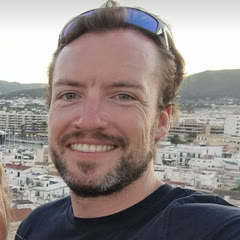
Tom Limb, who makes Oh So Video

Built by me, Tom Limb 👋

Founder of Oh So Video · Founder and CEO of Videvo · formerly Head of Video at Magnific

I've spent my career helping people make better videos. My previous company, Videvo, gave away footage for free to millions of users worldwide. Now, Oh So Video does the same with video tools. Every tool you find on this website runs in your browser. No need to upload, sign up or wait for server-side processing to get it done.

Questions about the teleprompter

Is this teleprompter free?

Yes, completely. There's no watermark on your video, no account, no time limit on your takes and no paid version of this tool.

Is my video uploaded anywhere?

No. The camera, the recording and the saving all happen in your browser, on your device. Your script, your video and your voice are never sent anywhere.

Does it work on a phone?

Yes. On a phone the teleprompter fills the screen, with the words at the top by the front camera, your controls at the bottom and the speed wheel on the right. It works in Chrome on Android and Safari on iPhone.

Can I use it with my webcam on a computer?

Yes, in the latest Chrome, Edge, Safari or Firefox. The words scroll in a narrow column at the top of the picture, so place the window so that column sits right under your webcam. The closer they are, the more it looks like you're talking to your viewer.

What speed should I set?

Most people speak at between 130 and 160 words per minute, and the teleprompter starts at 160. Rehearse once and adjust in steps of ten. On a computer, the up and down arrow keys change the speed too. Your speed and size are remembered for next time.

What if I fall behind or get ahead of the words?

Tap the words to pause them, and tap again to carry on. On a phone, push the speed wheel up to catch up or pull it down to let yourself catch up, then let go. The prompter doesn't listen to your voice: it scrolls at the speed you set.

Can I practise without recording?

Yes. Press Rehearse and the words scroll exactly as they will when recording. Press Stop, and they go back to the top. On a computer, the space bar starts and stops a rehearsal.

Are there keyboard shortcuts?

On a computer, the space bar starts and stops a rehearsal, and stops a recording. It never starts one, so a stray press can't begin a take. The up and down arrow keys change the speed.

Is the video mirrored?

The preview from the front camera is mirrored, like a mirror, so it's easier to frame yourself. The saved video isn't: it's the right way round, as everyone else sees you.

What does the silence trimming do?

It finds where you start and stop speaking, and keeps half a second either side. The cut is made without re-encoding, so the picture and sound are untouched. The preview plays only what will be kept. Untick it to save the whole take.

What kind of video do I get?

An MP4 that plays on any computer or phone and in every editing app, recorded at up to 1080p. It's named with the date and time you recorded it. The take is written to your device as it's recorded, so a long one doesn't fill your phone's memory.

What kind of script file can I use?

A plain text file, .txt or .md, or paste your script straight into the page. Pasting from Google Docs, Word or Notes works too: the formatting is dropped and the words kept. A blank line starts a new paragraph.

Can I use my phone's back camera?

Yes: the flip button switches between the front and back cameras. The back camera is usually the sharper one, but you won't be able to see the words, so it's for someone else reading, or for filming without the prompter.

Why is it asking for my camera and microphone?

To show and record you. The browser asks once, and your answer is kept for this site. If you refused by mistake, the page shows how to allow them again in your browser's settings.

Record with a teleprompter

More free video tools